If you’re managing multiple Telegram channels or groups, automating message delivery can save you hours of manual effort. With the Auto Forward Messages bot, you can either use your personal Telegram account or let a custom bot you created send messages to your target chats instead.
- 👤 Using your personal Telegram account: is the fastest and simplest way to set up auto-forwarding — no need to assign admin rights or configure additional settings. However, this method is better suited for small-scale setups. When handling a large number of tasks, Telegram may impose message limits or temporarily restrict your account due to excessive activity.
- 🤖 Telegram bots: a more flexible, scalable option that can bypass Telegram’s stricter limitations. They help reduce the risk of your personal account getting limited or flagged — especially when handling large volumes of messages, videos, or content from multiple sources. While setup is more complex, bots are a safer, more scalable solution for high-volume automation. Plus, your main account stays 100% hidden — admins won’t know who forwarded the content — making bots ideal for safely sharing posts from VIP, premium, or private channels.
⚠️ This guide is crucial — because this feature the core setting that determines which account will be used to send automated messages to your target chats. Let’s dive in.
1️⃣ Create a Telegram Bot with BotFather and Add It to the App
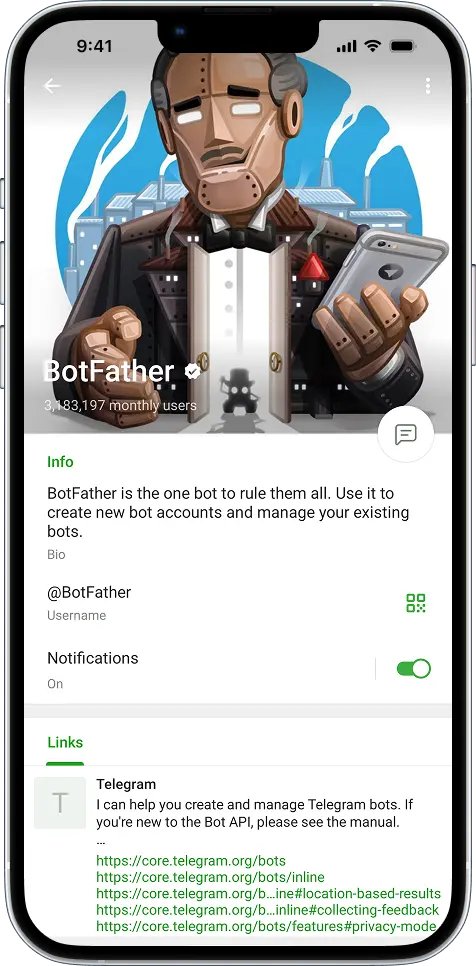
To start using bots, you’ll first need to create one using @BotFather — Telegram’s official bot management tool.
Steps:
- Open BotFather
Open Telegram and search for
@BotFather, or go to t.me/BotFather. -
Verify the Account
Confirm it’s the verified BotFather (look for the checkmark).
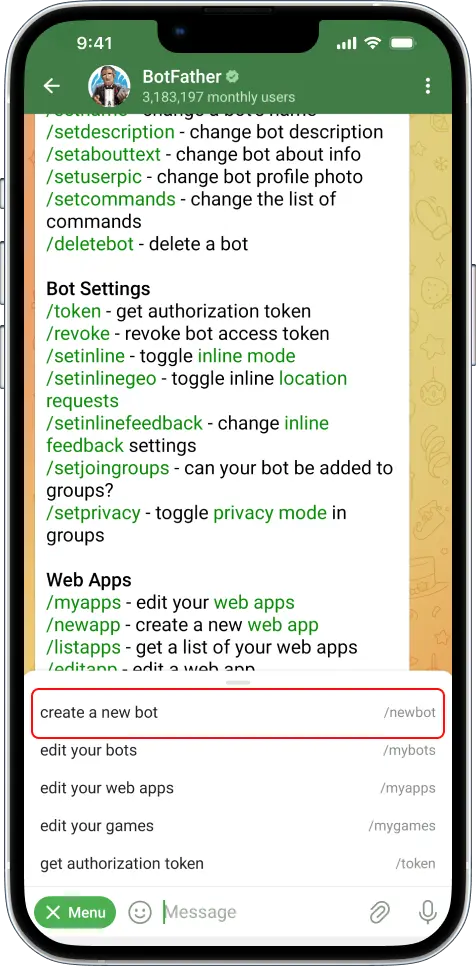
- Start Creating Your Bot
Type
/newbotto begin the creation process.
-
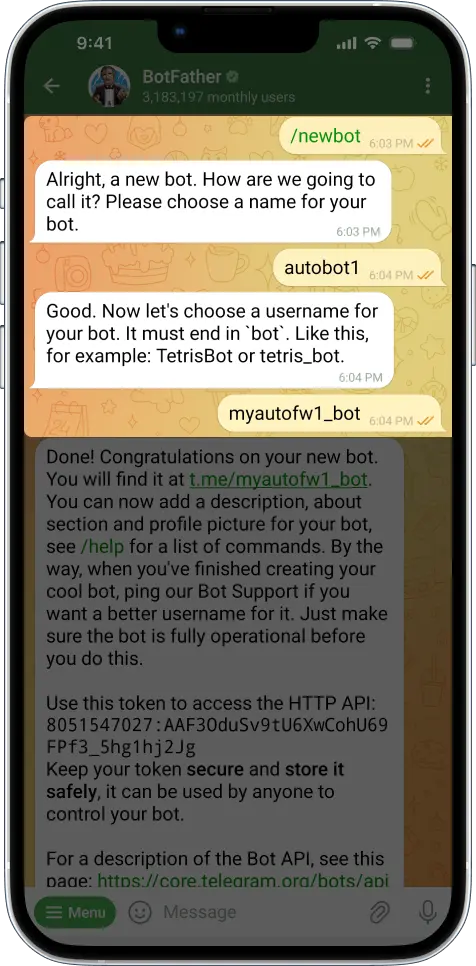
Set a Name and Unique Username
First, give your bot a name — for example,autobot1.
After that, choose a unique username that ends with “bot” (e.g.,myautofw1_bot). Make sure the username isn’t already taken and doesn’t include any special characters.
-
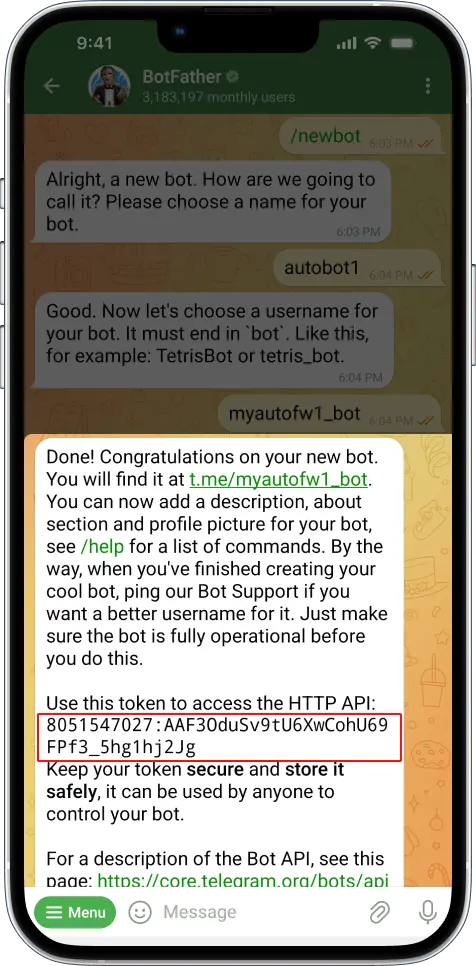
Copy the Bot Token
After creation, BotFather will generate an API token.
Copy it for the next step.
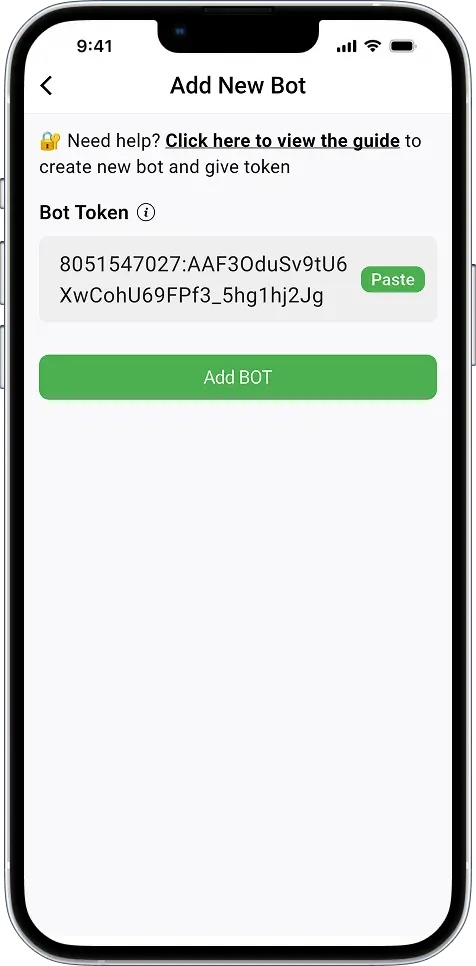
- Add the Bot to the App
Settings → Bot Management → Add Bot
Repeat this process if you want to create and use multiple bots. You can identify them easily by giving each a different name and username.
2️⃣ Send Messages Automatically Using a Single Telegram Bot
Once your bot is added, you can assign it as the Sender Type for your forwarding task.
Steps:
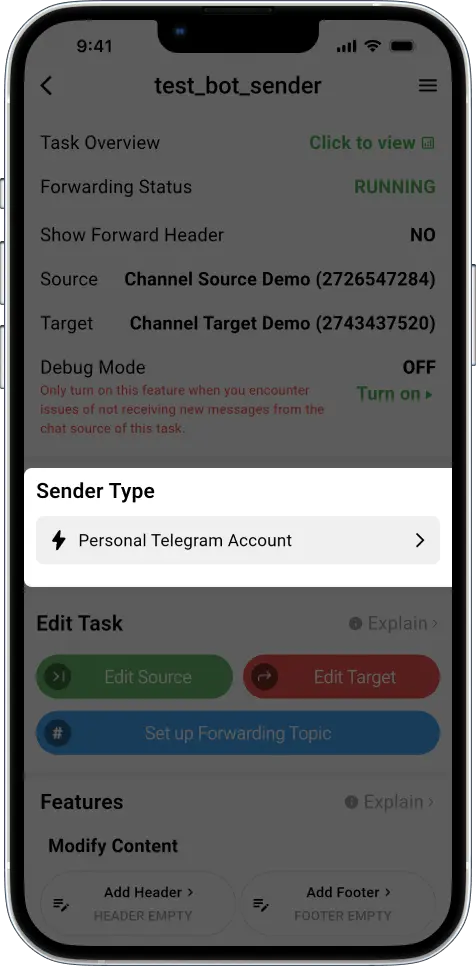
- Open Your Forwarding Task
In the app, select the task where you want to use the bot.
- Set the Sender Type
TapSender Type→ ChooseTelegram Bot.
-
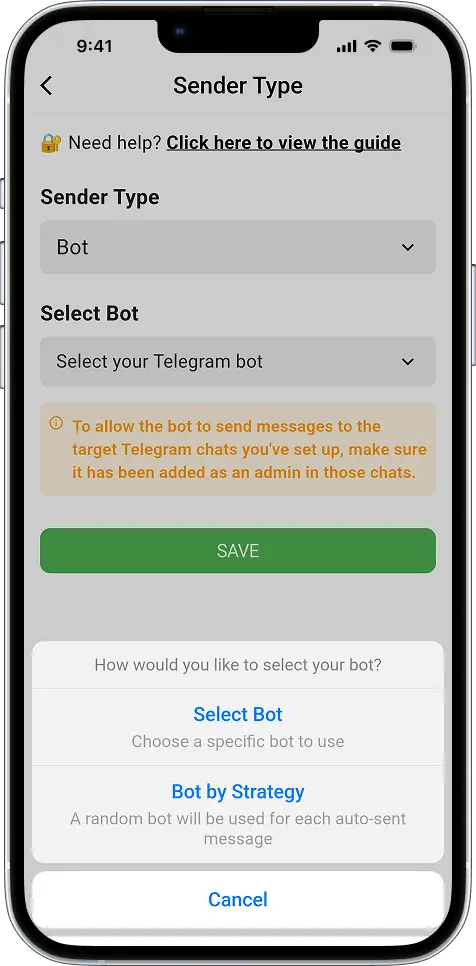
Choose How Bots Are Assigned
Select
Bot– click to choose one specific bot to send messages for this task.
-
Pick a Bot from the List
Select your bot (e.g.,
myautofw1_bot) from the list.
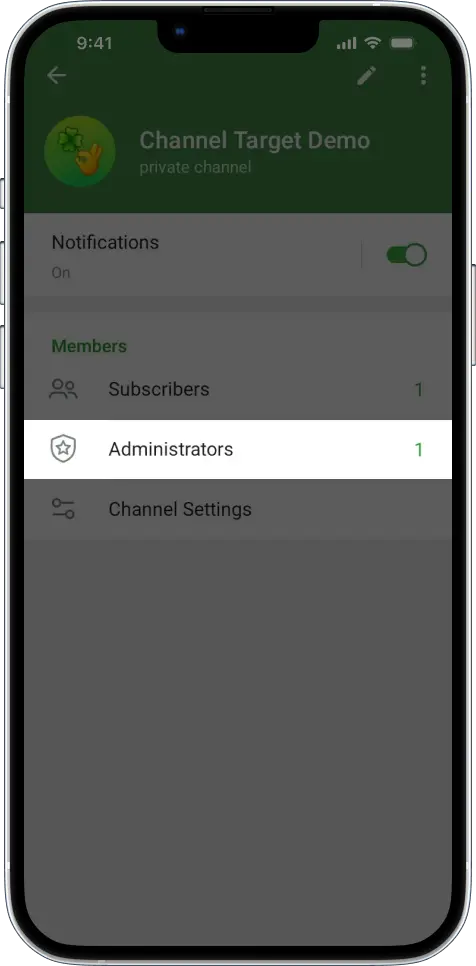
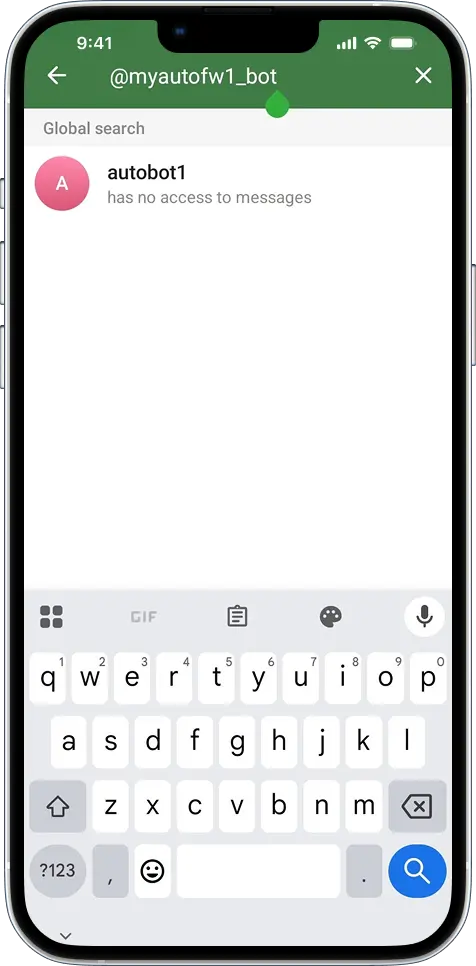
- Give the Bot Admin Rights
This step is crucial — the bot needs admin permission to send messages to a channel, but for groups or supergroups, being a member is enough.- Open your target group or channel
- Tap the chat name → Go to
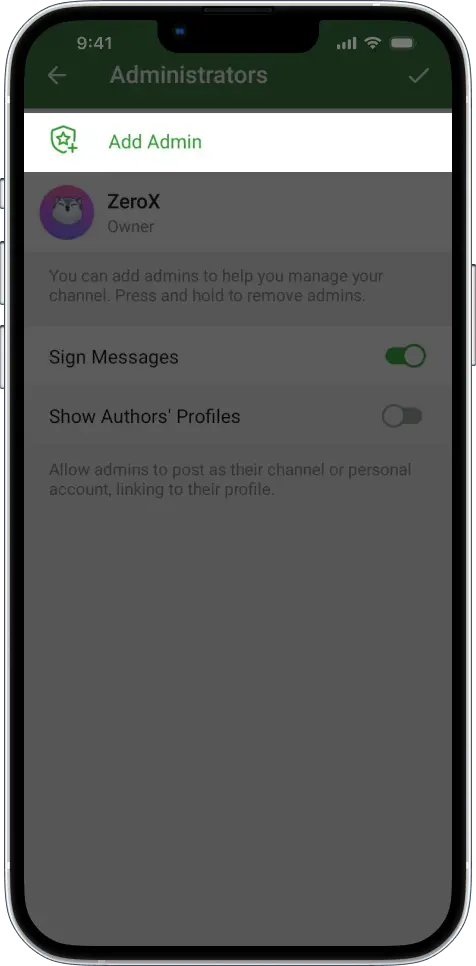
Administrators - Tap
Add Administrator→ Enter@your_bot_username - Confirm and save
-
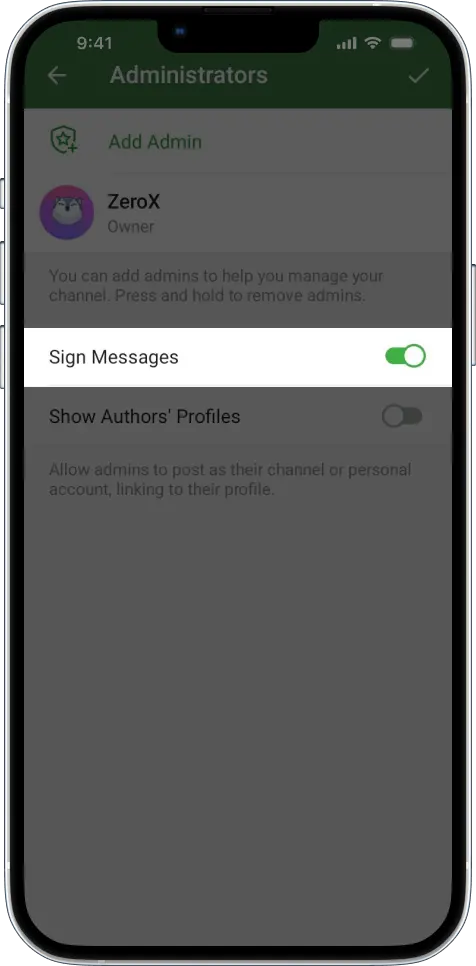
(Optional) Show Bot Name in Messages
This setting is completely optional — it doesn’t affect how the bot works, so you can enable it or leave it off.
Whether it’s on or off, everything will still function normally. The only difference is that if enabled, messages in the target Telegram chat will display the sender’s name (either your bot or personal account) next to the timestamp.
This feature is helpful if you want to confirm that the message was sent by your bot — not your personal account.
To enable it:
Go to your channel → Chat Settings → Sign Messages → Turn it on.
-
Save Your Settings
Return to the app, confirm the selected bot, then tap Save.
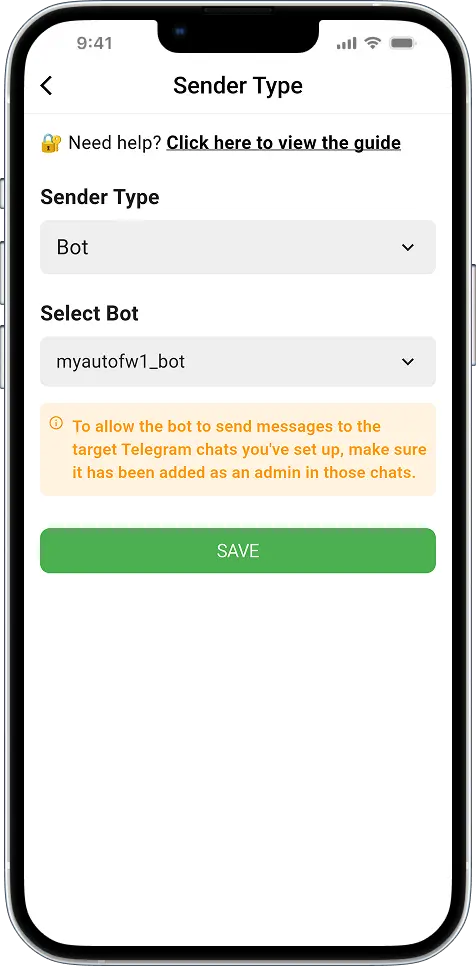
That’s it! You’ve successfully assigned a Telegram bot to handle automatic message delivery for this task. From now on, your selected bot will be the one sending messages to the target chats — not your personal account.
3️⃣ Use “Bot by Strategy” to Rotate Multiple Bots Automatically
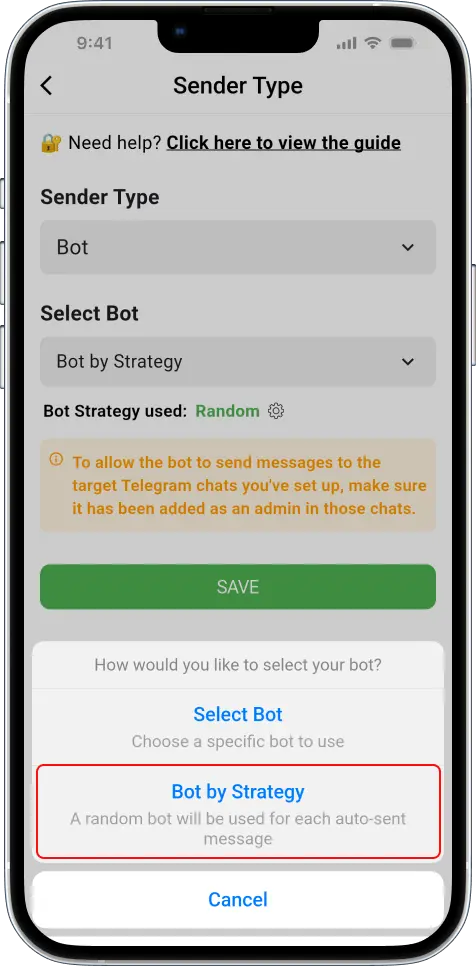
If you’re handling high message volume or want to avoid overloading a single bot, the Bot by Strategy mode is your best choice. It intelligently rotates between multiple bots based on your selected strategy — helping you scale efficiently and reduce rate-limit risks.
⚠️ Important: This mode uses all the bots in your list. So before enabling it, make sure every bot has admin rights in all your target chats. If a bot isn’t an admin, it won’t be able to send messages to that destination — and in that case, your personal Telegram account will be used instead.
Steps:
- Open your Forwarding Task
In the app, select the task you want to edit.
- Set the sender type
Tap
Sender Type→ ChooseBot by Strategy.
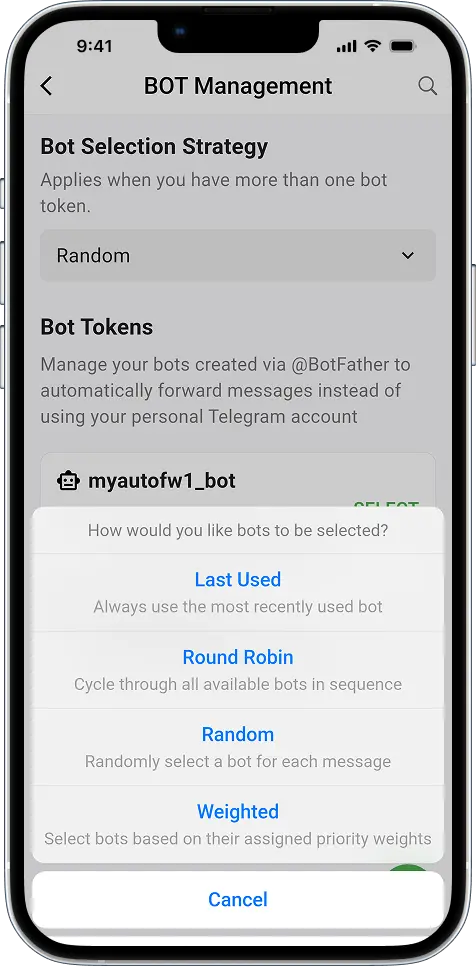
- Customize the Bot Selection Strategy
- Tap the ⚙️ icon next to
Bot by Strategy. - Go to
Bot Management→ TapBot Selection Strategy. - Choose how the system should pick a bot:
- Last Used: The same bot that sent the most recent message will be reused for the next one. Messages are grouped under a single bot until you manually reset or change tasks.
- Round Robin: Bots take turns in a fixed sequence. The system cycles through the list, assigning the next message to the next bot. This ensures even usage across all bots over time.
- Random: For each message sent to the target chat, the system randomly picks one bot from your list to send that individual message. This means each message may be sent by a different bot, offering highly distributed traffic with no fixed order.
- Weighted: Bots are assigned weights (e.g., 50%, 30%, 20%), and the system distributes messages based on those percentages. Bots with higher weights are used more often, giving you flexible control over load distribution.
- Tap the ⚙️ icon next to
-
Apply the Strategy
Select your preferred mode → Tap Update.
-
Save the Task Settings
Return to the task and tap Save to finalize.
Done! From now on, whenever you send a message into the source chat, the system will automatically assign it to a bot based on your chosen strategy.
4️⃣ Use Your Personal Telegram Account to Send Messages Automatically
Using your personal Telegram account for auto-sending isn’t a bad thing. In fact, it’s a safe and valid choice — as long as your content is transparent, complies with community guidelines, and you’re not forwarding to too many target chats at once.
Here’s how to set it up:
- Go to your task → Tap Sender Type
- Select Personal Telegram Account
- Save the setting
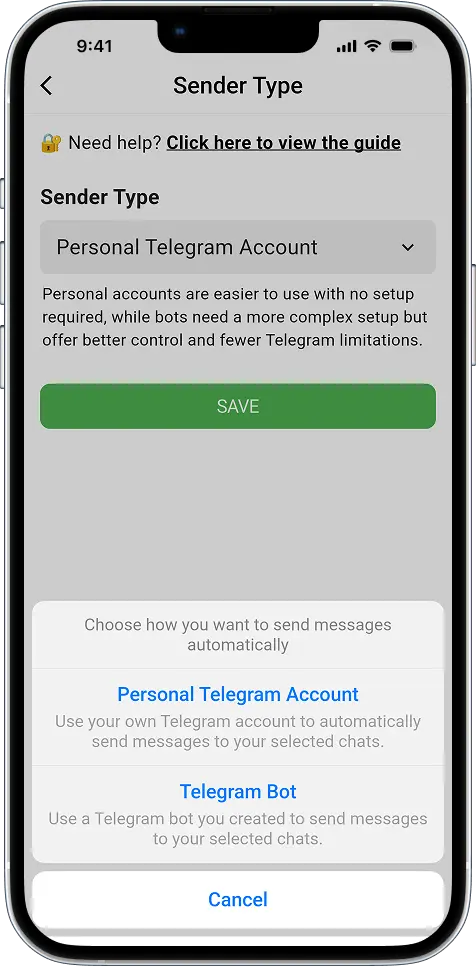
There’s no need for bot tokens, admin permissions, or extra setup. Just send messages into the source chat, and the system will forward them to your target chats using your personal account.
This option works best when:
- You want a quick and easy setup
- You have a moderate number of automated forwarding tasks, or the message forwarding intensity is not high.
- Messages are automatically forwarded to groups or channels where you lack admin rights to assign the bot as an administrator — including public communities or chats you don’t own.
Final Thoughts
The Sender Type feature in Auto Forward for Telegram is at the heart of how your messages are delivered — offering you flexibility, control, and reliability.
- Use Personal Telegram Account if you’re managing a small number of tasks, want a hassle-free setup, or are sending to chats that don’t require admin rights. It’s quick, simple, and effective for lightweight use.
- Choose Telegram Bot if you’re aiming for long-term automation, higher reliability, or more privacy in how messages are sent. Bots can handle larger volumes, reduce the risk of restrictions, and help you stay anonymous — perfect when forwarding VIP, premium, etc. Whether you’re managing multiple chats or distributing tasks across teams, bots offer the control and scalability personal accounts can’t.
- Chooose Bot by Strategy when you need all the benefits of Telegram bots — flexibility, scalability, anonymity, and risk reduction — plus intelligent rotation across multiple bots to balance message load and ensure smooth delivery under pressure. This advanced option is ideal for large-scale automation or high-traffic environments where performance and reliability are critical.
No matter your setup, choosing the right Sender Type ensures your auto-forwarding system works efficiently, safely, and at scale.
For best results, use auto-forwarding to share useful, inspiring, and high-quality content that creates value and engages your audience.
Now it’s your turn to try it out and scale your Telegram automation like a pro — and discover how to auto send Telegram messages with full control.
🔗 See More: How to Create Watermarks for Automatically Forwarded Messages
🔗 See More: How to Schedule Telegram Message Posting Automatically