Want to customize your Telegram auto-forwarded messages with extra context, branding, or call-to-actions? With the Auto Forward Messages bot, you can now automatically add a custom Header and Footer to every message sent to your target chats.
Whether you’re a crypto trader, a news curator, or a community admin, these two powerful features help turn raw message forwards into branded, structured, and trustworthy updates.
What Are Headers and Footers in Telegram Forwarded Messages?
- A Header appears before the forwarded message. It’s perfect for labels, sources, or attention-grabbers.
- A Footer appears after the message. It’s ideal for links, time stamps, disclaimers, or emojis.
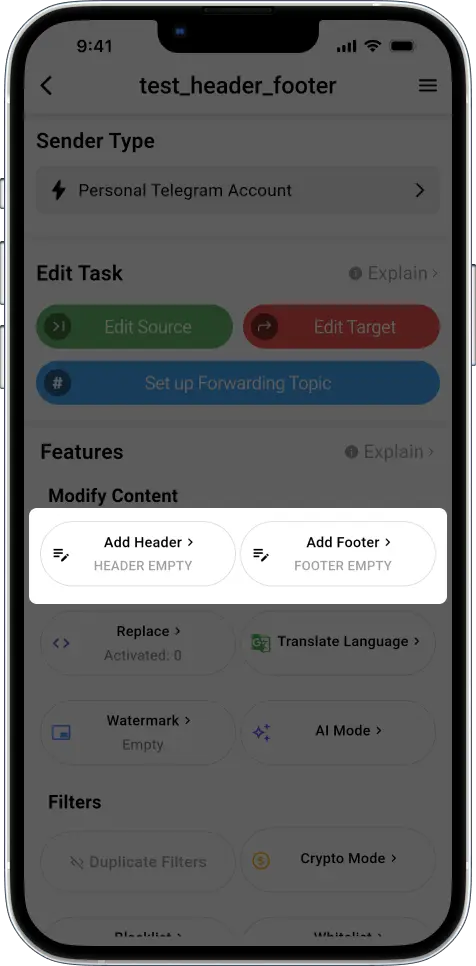
These two blocks work independently but can be combined to elevate your message presentation.
1️⃣ Add a Header to Make Messages More Understandable
A header appears before your original message. This is perfect for labeling content—like announcements, reminders, or alerts.
How to Set It:
- Open your existing forwarding task
- Scroll to the Header section
- Type your custom content
- Tap Done
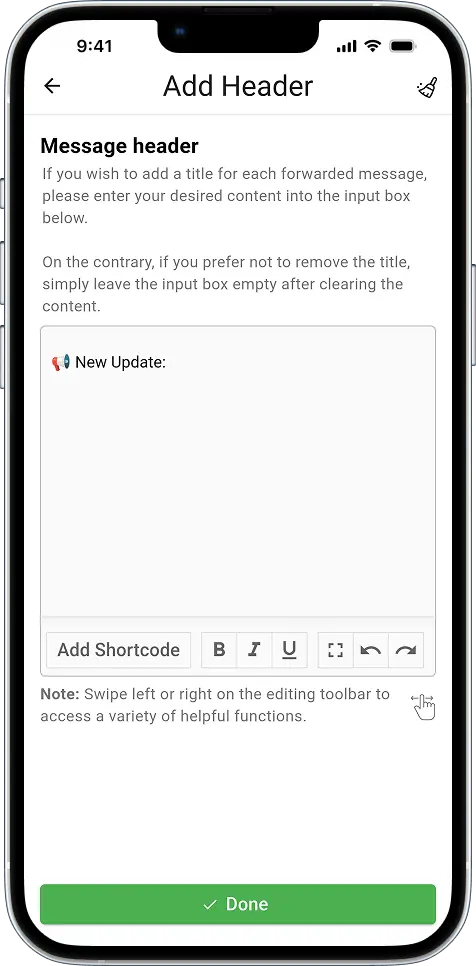
Example Header:
📢 New Update:
When someone sends a message like:
We’ll have maintenance at 10PM UTC.
Your target chat will receive:
📢 New Update:

We’ll have maintenance at 10PM UTC.
You just made the message more readable and clearly tagged its purpose.
2️⃣ Add a Footer with Extra Info or Links
A footer appears after your message. It’s ideal for contact links, disclaimers, or just a nice wrap-up.
How to Set It:
- In your task, go to the Footer section
- Write your content, using line breaks (
\n) for clarity - Tap Done
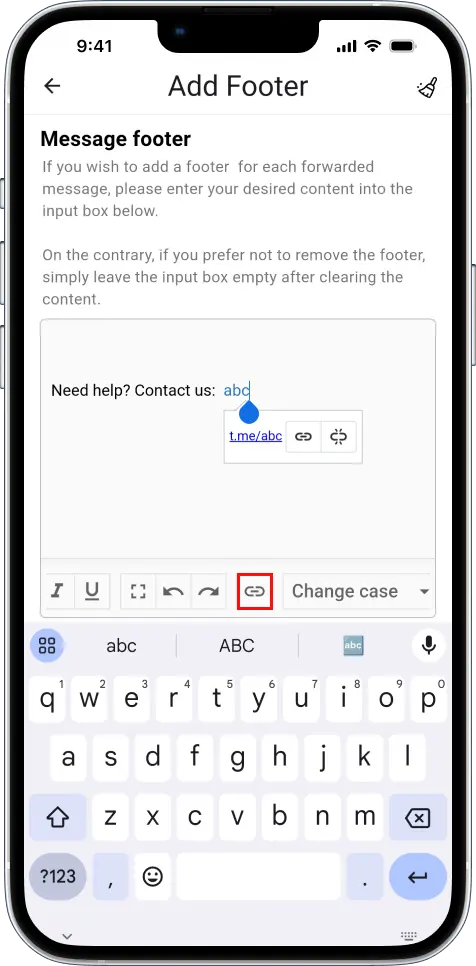
Example Footer:
Need help? Contact us: t.me/abc
Now if someone forwards a message:
Here’s the weekly report link.
It will show like:
Here’s the weekly report link.

Need help? Contact us: t.me/abc
Perfect for support teams or help desks.
✨ Use Shortcodes
If you’re running a crypto signals group or sharing on-chain alerts, shortcodes make your formatting dynamic and automatic.
What Are Shortcodes?
Shortcodes are special tags that get replaced automatically in forwarded messages.
How to Use:
- Go to Header or Footer section
- Tap “Add Shortcode”
- Choose what you want
- Insert into your text and save
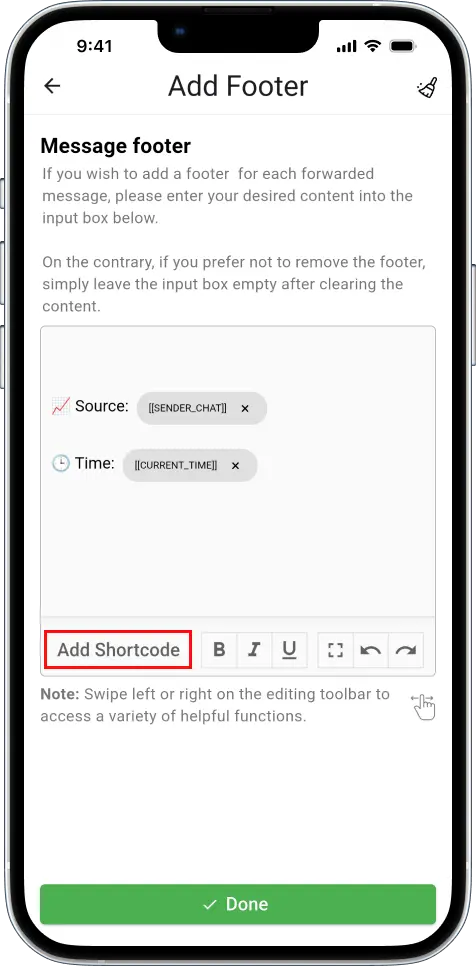
Example Footer for Traders:
📈 Source: [[SENDER_CHAT]]
🕒 Time: [[CURRENT_TIME]]
So when a message is sent in your source group/channel, like:
Long BTC at $29,800
TP: $31,000 | SL: $29,000
Your target group/channel will receive it like this:
Long BTC at $29,800
TP: $31,000 | SL: $29,000

📈 Source: @VIPTradeSignals
🕒 Time: 17:07:48
No need to manually tag anything—it updates itself every time.
See More: How to Create Automatic Message Forwarding in Telegram