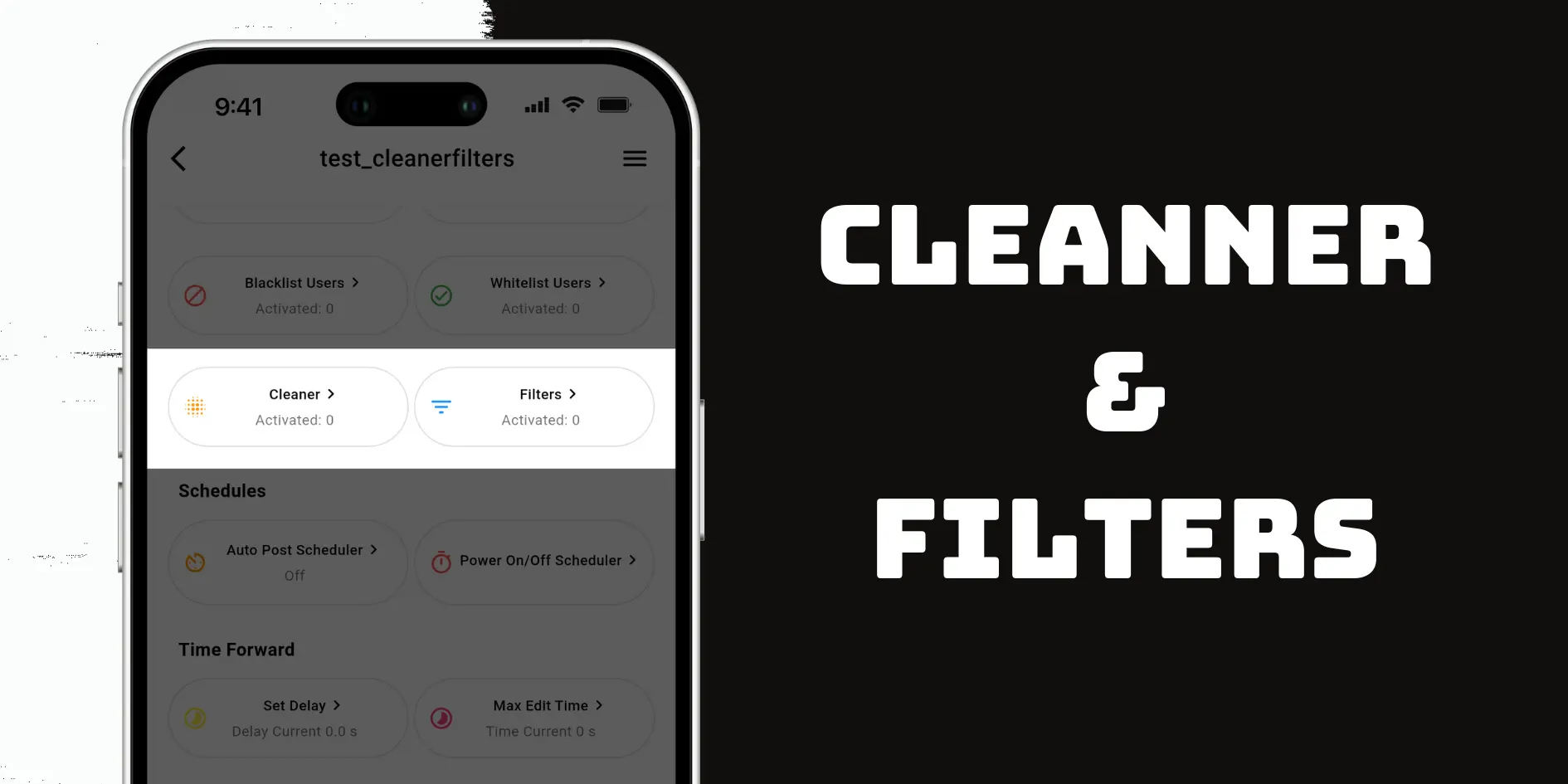
If you want to skip certain Telegram messages or clean up their content before forwarding, Auto Forward Messenger’s Cleaner and Filters features are exactly what you need. The Filters feature lets you skip entire messages based on specific conditions, while the Cleaner actively removes unwanted elements from within each message—such as links, emojis, hashtags, or other clutter.
Whether you’re managing a crypto channel, curating content, or forwarding to a group, these tools give you more control and better automation.
🧹 What Is the Cleaner Feature?
The Cleaner feature in Auto Forward Messenger helps you remove specific elements from forwarded messages—like emojis, hashtags, links, URL previews, and other unwanted content—before they reach your target chat.
This ensures your forwarded messages look clean and professional every time.
Step-by-Step Guide: How to Use the Cleaner
To enable Auto Forward Messenger Cleaner and Filters, simply follow these steps:
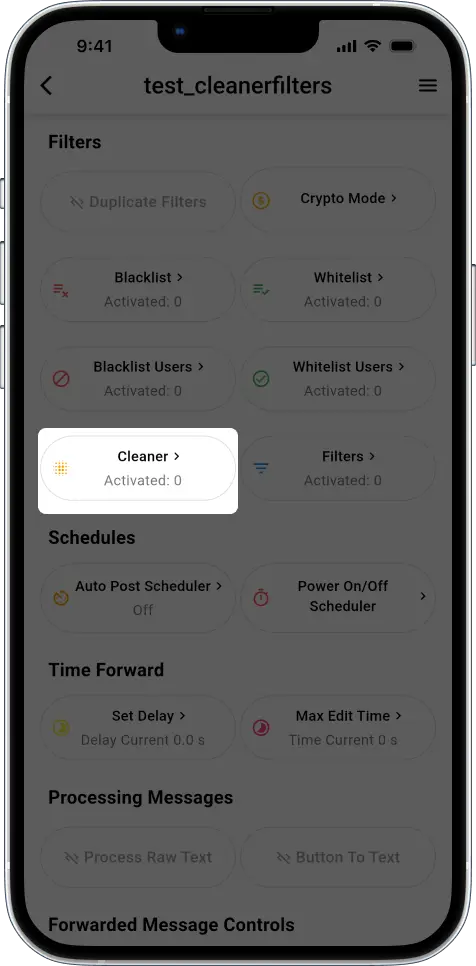
- Open your auto-forward task inside the app.
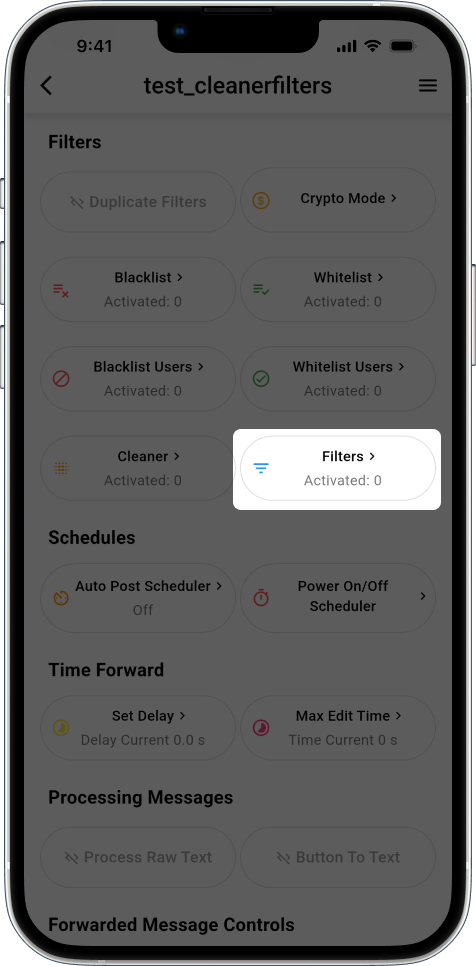
- Scroll down and locate the Filters section.
- Tap the Cleaner tab to begin adjusting message cleanup settings.
Example 1: Remove URL Previews Automatically
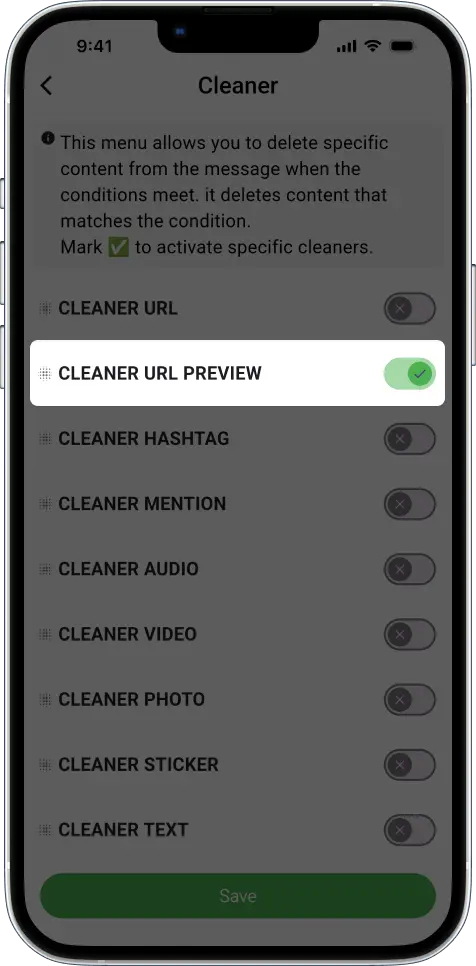
If your message includes a link and shows a preview, turn on the Cleaner → URL Preview toggle. Then, re-send the message to your source chat. As a result, the forwarded version won’t include the preview.
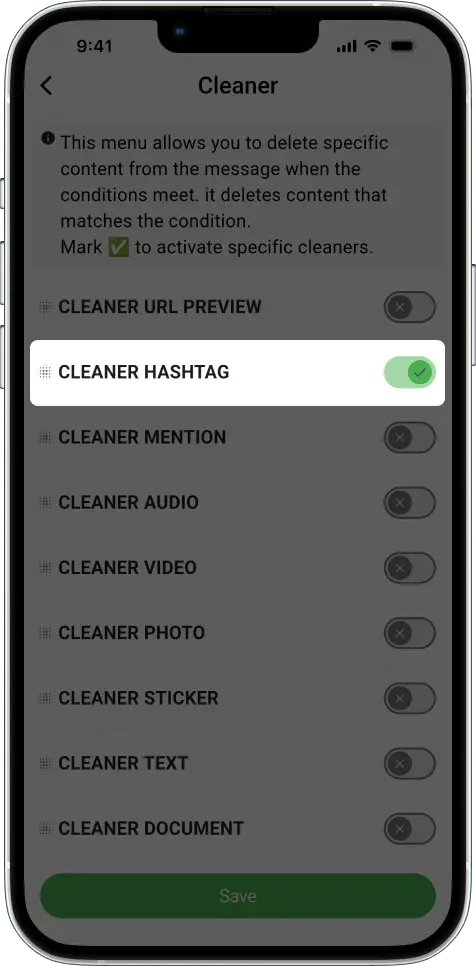
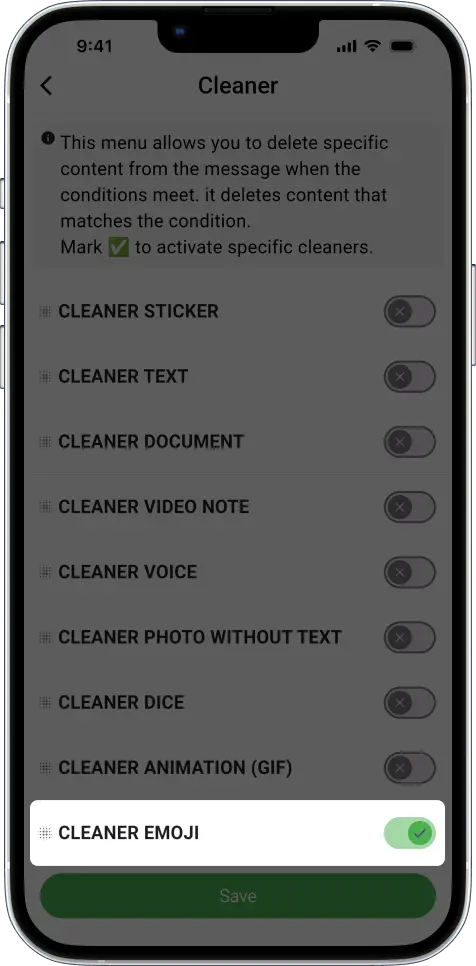
Example 2: Remove Emojis and Hashtags
Looking for a cleaner or more formal tone? Enable the Emoji and Hashtag options in the Cleaner tab. The message will be forwarded without these extra elements.
Example 3: Strip URLs From Messages
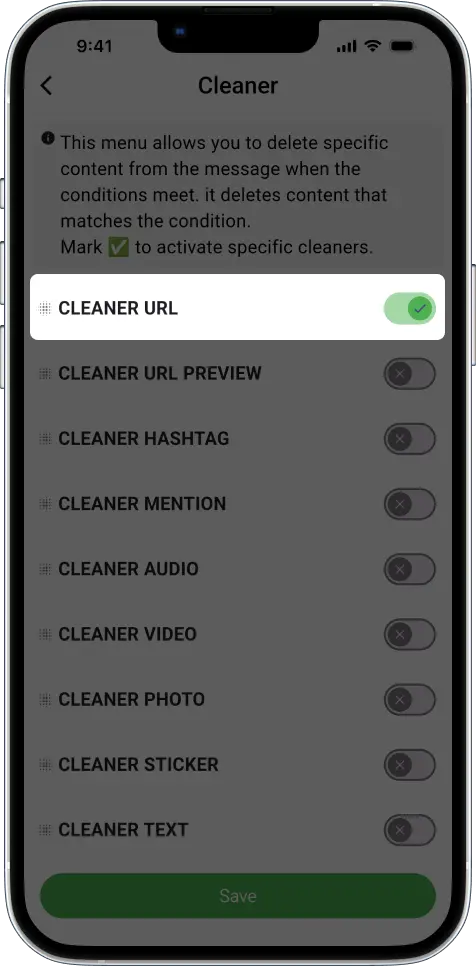
To completely remove clickable links, activate Cleaner → CLEANER URL. From that point on, forwarded messages will be link-free.
🚫 What Is the Filters Feature?
Unlike Cleaner, which fine-tunes message content, Filters give you a way to skip forwarding entire messages when they match specific rules.
For example, you can block messages that contain links, consist only of plain text, or include certain keywords. This level of control is especially useful when managing high-volume channels.
Example 1: Filter Out Messages with Links
To block link-based messages from being forwarded:
- Go to the Filters tab.
- Enable Filter → Links.
- Send a message with a URL to your source chat.
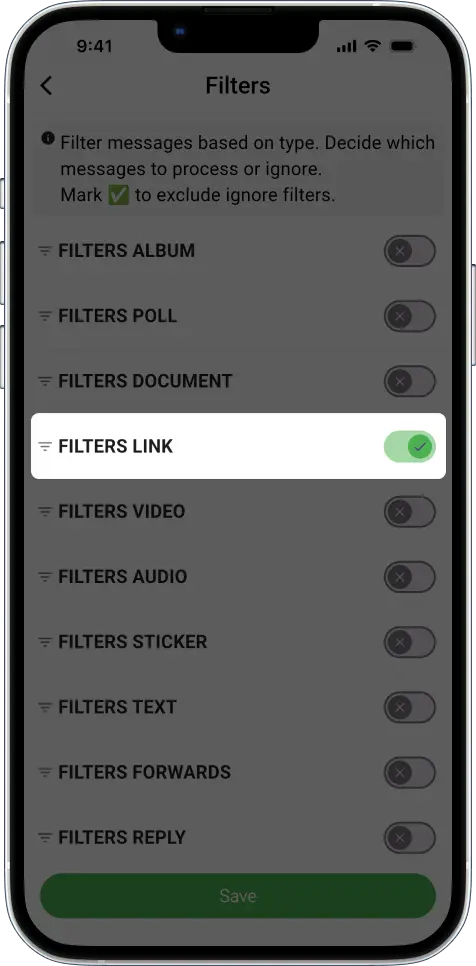
That message will be skipped automatically. Others without links will go through as normal.
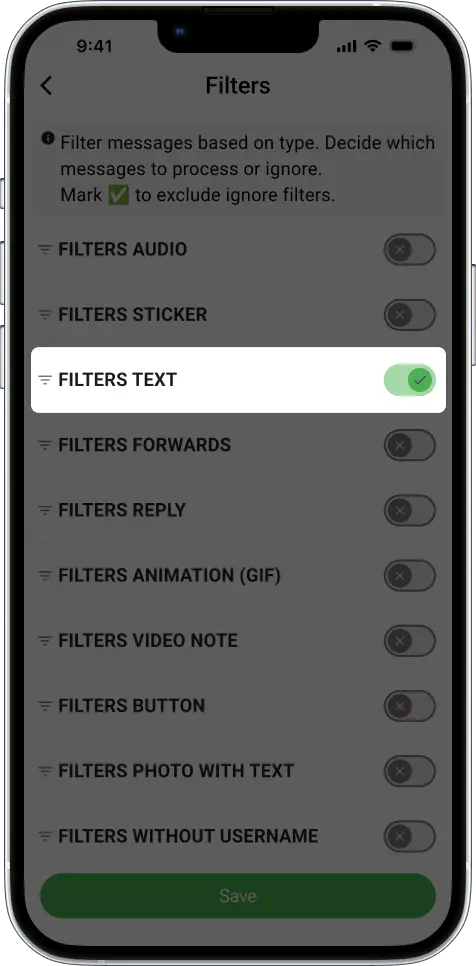
Example 2: Block Text-Only Messages
If you’re tired of clutter, this one’s for you. Enable Filter → Text to prevent plain text messages from being forwarded. Meanwhile, media or image messages will still go through.
Telegram Auto Forward Cleaner vs. Filters – What’s the Difference?
Here’s a quick breakdown:
| Feature | What It Does |
|---|---|
| Cleaner | Removes parts of a message (e.g., emojis, URLs, hashtags) from a message |
| Filters | Skips or blocks entire messages if they match certain conditions |
➡️ For the best results, use both together. That’s why many Telegram admins, content curators, and crypto traders trust Auto Forward Messenger—it gives them cleaner automation and smarter control.
Final Thoughts on Telegram Auto Forward with Cleaner and Filters
In conclusion, the Cleaner and Filters features offer flexibility and precision. Whether you’re removing visual clutter or filtering out unwanted messages, these tools empower you to customize your Telegram workflow effectively.
👉 Try them today. Open Auto Forward Messenger and customize your automation for a better Telegram experience!